Fedora transition

It’s been a few days working with Fedora at home, and so far it’s going well.

Unfortunately I’m not able to completely dispose of Windows since I still need to use Quicken and there isn’t anything comparable available for Linux yet (that I’ve found anyway). Fortunately, thanks to the magic of virtual machine (VM) technology, that was one problem I was able to get around relatively easily. Downloaded and installed VirtualBox, followed the instructions to create a new virtual machine and booted it up with my Windows CD. Took a couple of days to get Windows and all the updates installed, but now I have a working Windows VM running in my Fedora install. This VM thing is pretty cool. A little slower than an actual computer, but not so much that it’s unusable. Now I just need to figure out how to get the VM to grab USB devices so I can use my PDA and scanner to get things into Quicken.

Moving on to Fedora

After experiencing numerous inexplicable problems (not seeing anything connected to the USB ports, not finding the DHCP server, no sound…the list went on and on) trying to get Windows XP running on the home computer (with new e-Bay’ed motherboard), I decided to wipe everything clean and install Fedora 8 on the darned thing.

Wouldn’t you know it, everything that wasn’t working in Windows worked again. USB, sound, network, the works. It’s almost like having a brand new computer. The only problem I ended up having was discovering a few things that got left off the backup I made. Nothing critical though.

Now I need to figure out how to get my PDA syncing, get Quicken up and running, and work on keyboard and mouse mappings.

I’m an uncle again!

Just got a call from Mom telling me that my brother and his wife are the proud parents of a baby girl as of yesterday.

Congratulations to them!

Update:

Jocelyn Francis Ellis Mah
Born January 4, 2008 at 7:12pm
Weight 3.713 kilograms (or 8 pounds 3 ounces)

(Bonus) Hard Drive Dissection Part 3

This next one is a bit of a bonus. It’s a 2.5″ 60 GB drive that I pulled out of a laptop when it flaked out. Fortunately the drive managed to recover itself long enough for me to retrieve the data. I was using it for a little bit as an emergency backup/transfer drive in an external enclosure until the motor made loud shrieking sounds and finally seized up on me.

As you can see from this shot, 2.5″ form factor drives are pretty small. This one has 3 times the capacity of the 3.5″ form factor drive from Part 2.

Two hard drives next to each other.  One is a 3.5 inch form factor and the other is a 2.5 inch form factor.

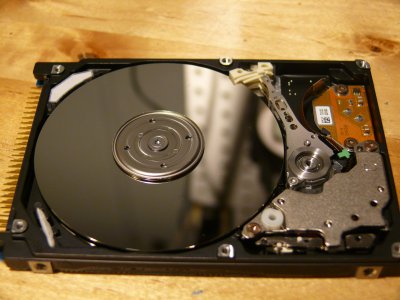
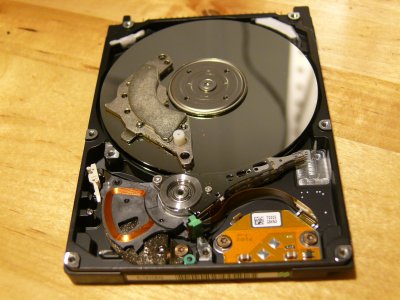
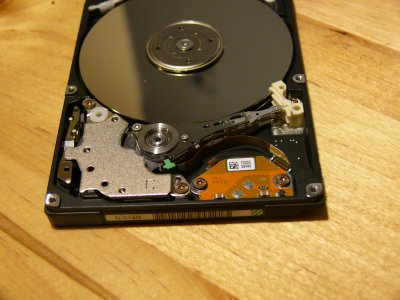
Under the cover it’s like a miniature version of the larger drives. Like the Deskstar, this one also uses an off-platter landing zone. This drive has two platters.

Hard drive with the cover removed showing the internal components.
Top cover of the 2.5 inch hard drive removed showing the internal components.

Unlike the larger drives, this one only has one magnet, presumably for space reasons. It’s just as strong as the magnets in the larger drives though.

Internal view of one of the hard drives with one of the magnets removed and sitting on the disk platters

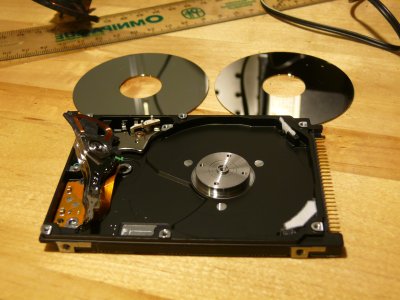
The fully disassembled drive and its two platters

Disassembled hard drive with most of the components removed.  There are two disk platters sitting on the table above the hard drive chassis

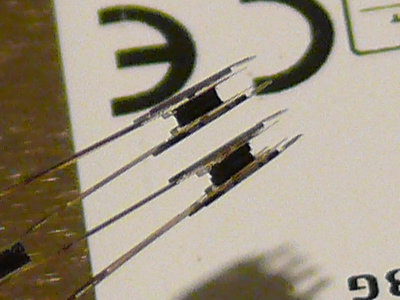
A close up of the read/write heads, one pair for each platter.

Close up view of the read/write heads of the hard drive

Size comparison of two drive arms

Size comparison of the articulating arms of the hard drives

Google Chart API

Google’s new Chart API looks like it’ll be fun to play with. The method for specifying values for the data points is a little unusual, but interesting. There are a surprising number of options you get to play with. I’m looking forward to messing around with it.