Computer upgrades

The computer got another hard drive upgrade when the 1TB drive holding my home directory started throwing errors and disappearing from the system. After causing a small amount of panic and a few reboots, the drive managed to stay stable enough for me to get it backed up to the LVM partition. Now it’s been replaced with a 1TB SSD which has given me a nice speed boost.

The nearly 10 year old mid-range (at the time) video card, a GTX 260, also got an upgrade to a much newer and higher end GTX 1660 Ti. The GTX 260 was getting pretty old, and I was starting to get some weird errors with the nouveau driver, so I figured it was time for an upgrade. The new card is about 2/3 the length of the GTX 260, which gives a little more room around the SATA ports and hard drives to work. Hopefully I’ll be able to put the GPU to some number crunching work at some point, and later maybe get into a bit of gaming (after the PhD of course).

Hard drive upgrades

One of the hard drives in my computer had been spitting out errors for a little while now, so over the weekend I revamped the storage in my computer. I’m also expecting the simulation work I’ll be doing for my PhD will require a decent amount of storage, so I picked up a couple 4 TB WD Blue hard drives from Newegg. They were a decent price, and brought my computer from a total of about 3 TB up to just over 10 TB of storage.

The failing drive (1 TB) got replaced, and I also took out an old 250 GB IDE drive that I was using as a place to temporarily dump files. That left a 1 TB drive, two 500 GB drives, and the 250 GB SSD.

After doing a bit of cable gymnastics in the case, the two new drives got installed and plugged in. Current configuration now has the SSD as the boot drive and root partition. I made the 1 TB drive my home directory, and decided to lump the 4 TB and 500 GB drives into a single LVM2 volume group for my primary storage. I considered a RAID 1 or 10 configuration, but with time and brain space constraints, a JBOD setup seemed like it would be easier. I might change my mind later on though.

If it turns out I need even more storage, the case still has one empty drive bay that I can stick another drive into.

SSD upgrade

A couple of months ago, I gave my computer its first significant upgrade since I buffed the RAM to 24 GB.

I’d been wanting to add a SSD drive to the system for a while now, and finally bought a 250 GB Samsung EVO 850 to function as the boot drive.

Installation was pretty easy. The hard part was fishing out a spare power cable and finding a spot to secure the drive. The case is technically out of free drive bays, but SSDs are pretty thin, and I was able to find enough space between the CD drives and one of the hard drives to secure the SSD to.

Once the drive was installed, the computer got a fresh Fedora 25 install with the SSD as the boot drive. As expected, once all the packages were downloaded, installation went quickly. Really quickly. For a fresh install I’m used to leaving my computer alone for an hour or so while it’s installing packages. With the SSD, everything was installed and I was rebooting in under 30 minutes.

Boot times for my computer are around 1/3 or so (haven’t really timed it) of what it used to be booting off the spinning disk. A couple months in, I haven’t noticed any significant change in performance and there’s still plenty of room left on the SSD.

The original boot partition has been changed to a /var mount point and now the computer is on Fedora 26 Alpha.

Now I want to get SSDs to put into my laptops.

Hard Drive Dissection Part 5

While I was doing the final disposal of junk out of my old office, I found an ancient Dell Latitude XPi with a Pentium 120MHz CPU in it. From it, I harvested the next victimhard drive to be dissected: a 810MB Seagate ST9816AG that probably dates back to the mid 90s.

Seagate ST9816AG 810 MB hard drive

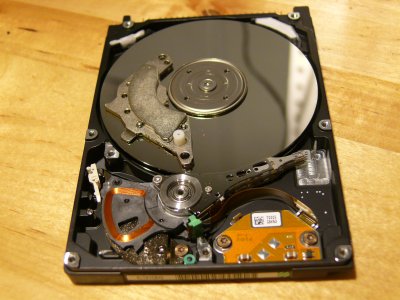
Underneath the cover. Looks pretty ordinary. Despite the huge advances in HD storage tech, the basics really haven’t changed all that much.

Seagate ST9816AG 810 MB hard drive with the top cover removed exposing the drive platters and read/write arms

Like with most 2.5″ form factor drives, the magnets are pretty small and slim. Still pretty strong magnets though.

One of the magnets from the hard drive

This particular drive was made up of 4 platters. Note the motor in the center made up of wire coils and magnets.

Hard drives platter showing the flexible connector and motor

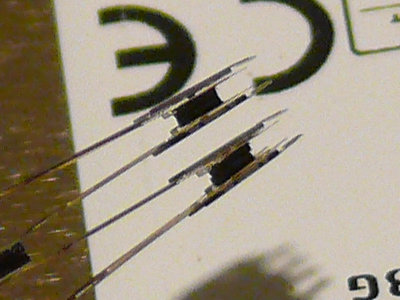
The read/write heads

(Bonus) Hard Drive Dissection Part 3

This next one is a bit of a bonus. It’s a 2.5″ 60 GB drive that I pulled out of a laptop when it flaked out. Fortunately the drive managed to recover itself long enough for me to retrieve the data. I was using it for a little bit as an emergency backup/transfer drive in an external enclosure until the motor made loud shrieking sounds and finally seized up on me.

As you can see from this shot, 2.5″ form factor drives are pretty small. This one has 3 times the capacity of the 3.5″ form factor drive from Part 2.

Two hard drives next to each other.  One is a 3.5 inch form factor and the other is a 2.5 inch form factor.

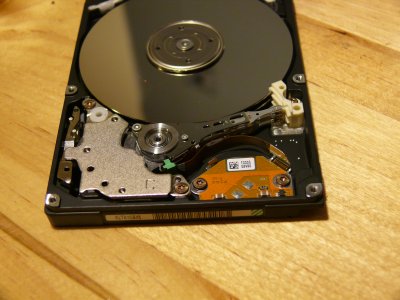
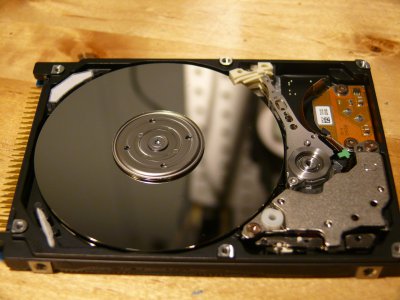
Under the cover it’s like a miniature version of the larger drives. Like the Deskstar, this one also uses an off-platter landing zone. This drive has two platters.

Hard drive with the cover removed showing the internal components.
Top cover of the 2.5 inch hard drive removed showing the internal components.

Unlike the larger drives, this one only has one magnet, presumably for space reasons. It’s just as strong as the magnets in the larger drives though.

Internal view of one of the hard drives with one of the magnets removed and sitting on the disk platters

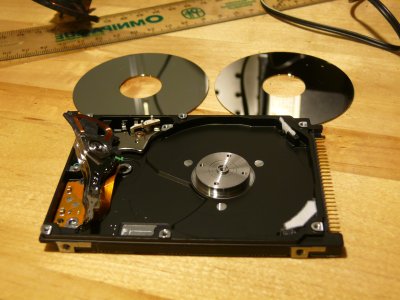
The fully disassembled drive and its two platters

Disassembled hard drive with most of the components removed.  There are two disk platters sitting on the table above the hard drive chassis

A close up of the read/write heads, one pair for each platter.

Close up view of the read/write heads of the hard drive

Size comparison of two drive arms

Size comparison of the articulating arms of the hard drives